Cloud storage support in ZArchiver


| Name | ZArchiver Cloud Plugin |
|---|---|
| Publisher | ZDevs |
| Genre | Tools |
| Version | 0.6 |
| Update | November 8, 2025 |
| Get it On | Play Store |
| Report | Report Apps |
Preview


Explore this article
Manage Cloud Storage with the ZArchiver Cloud PluginWhat is the ZArchiver Cloud Plugin?Supported Cloud Services and ProtocolsWhy Use the ZArchiver Cloud Plugin?Centralized File ManagementEnhanced AccessibilityImproved SecurityEfficient Use of Device StorageHow to Install and Use the ZArchiver Cloud PluginStep 1: Install ZArchiverStep 2: Install the ZArchiver Cloud PluginStep 3: Add Your Cloud Storage AccountStep 4: Configure Your AccountStep 5: Access Your Cloud FilesTips for Managing Your Cloud StorageTroubleshooting Common IssuesUnlock Your File Management Potential
Manage Cloud Storage with the ZArchiver Cloud Plugin
If you’re a ZArchiver user, you already know it’s a powerful tool for managing compressed files on your Android device. Its ability to create, decompress, and view archive contents has made it a go-to app for millions. But what if you could extend that power to your cloud storage?
With the ZArchiver Cloud Plugin, you can. This add-on seamlessly integrates your favorite cloud services directly into the ZArchiver interface, transforming it into a centralized hub for all your file management needs. No more switching between multiple apps to upload, download, or manage your cloud files.
This guide will walk you through everything you need to know about the ZArchiver Cloud Plugin. We’ll cover its features, benefits, and provide a step-by-step tutorial on how to get it up and running. By the end, you’ll be able to manage your local and cloud-based files with unparalleled efficiency.
What is the ZArchiver Cloud Plugin?
The ZArchiver Cloud Plugin is an extension designed to connect your ZArchiver app with various cloud storage services. It’s important to note that this plugin does not work as a standalone app. It requires the main ZArchiver application to be installed on your device to function.
Once installed, the plugin acts as a bridge, allowing you to access files stored in the cloud as if they were on your local device. You can upload files from your phone to the cloud and download files from the cloud to your phone, all from within the familiar ZArchiver environment.
Supported Cloud Services and Protocols
The plugin offers broad compatibility with several popular cloud platforms and protocols. This flexibility ensures that no matter where you store your files, you can likely integrate them with ZArchiver.
The supported services include:
- Dropbox: A popular choice for personal and professional file storage.
- box.com: Known for its strong security and collaboration features, especially in business settings.
- 4shared.com: A file-sharing service that provides users with 15GB of free space.
- MediaFire: Another well-known service for storing and sharing files.
- Yandex Disk: A cloud service from the technology company Yandex.
- Mail.ru Cloud: A popular cloud storage solution, particularly in Eastern Europe.
In addition to these specific services, the plugin also supports universal protocols, which greatly expands its utility:
- WebDAV: A protocol that allows you to manage files on a web server. Many cloud services and personal servers support WebDAV.
- FTP / SFTP / FTPS: These standard file transfer protocols allow you to connect to a wide range of servers and network-attached storage (NAS) devices.
This extensive support makes the ZArchiver Cloud Plugin a versatile tool for nearly any cloud storage setup.
Why Use the ZArchiver Cloud Plugin?
Integrating your cloud storage with ZArchiver offers several significant benefits that streamline your file management workflow.
Centralized File Management
The most immediate advantage is having a single interface to manage both your local and cloud-based files. Instead of juggling multiple apps—one for your device’s files and separate apps for each cloud service—you can do everything from one place. This consolidation simplifies your workflow, saves time, and reduces the clutter on your device.
Enhanced Accessibility
With the plugin, accessing your cloud files is faster and more convenient. You can browse, open, and manage your cloud directories directly within ZArchiver. Need to extract a ZIP file from your Dropbox directly to a folder on your SD card? The plugin makes that possible with just a few taps. This level of integration eliminates the tedious process of downloading a file from a cloud app, then opening it in ZArchiver.
Improved Security
Managing your connections through a single, trusted application can enhance your security. By using protocols like SFTP (SSH File Transfer Protocol), your file transfers are encrypted, protecting your data from being intercepted. ZArchiver is a well-established app, and centralizing your cloud access through its plugin reduces the number of third-party apps that have access to your storage accounts.
Efficient Use of Device Storage
Cloud storage is an excellent way to free up space on your phone or tablet. The ZArchiver Cloud Plugin makes it easier to move large files and archives off your device and into the cloud. You can compress a large folder, upload it directly to your cloud service of choice, and then delete the local copy to reclaim precious storage space. When you need the files again, you can just as easily download and extract them.
How to Install and Use the ZArchiver Cloud Plugin
Getting started with the ZArchiver Cloud Plugin is a straightforward process. Here’s a step-by-step guide to help you set it up.
Step 1: Install ZArchiver
First, ensure you have the main ZArchiver app installed on your Android device. If you don’t, you can download it from the Google Play Store. The plugin will not work without it.
Step 2: Install the ZArchiver Cloud Plugin
Next, download and install the ZArchiver Cloud Plugin from the Google Play Store. Search for “ZArchiver Cloud Plugin” and install it just like any other app. Remember, you won’t see a separate app icon for the plugin in your app drawer; it integrates directly into the main ZArchiver app.
Step 3: Add Your Cloud Storage Account
With both apps installed, open ZArchiver.
- Tap the app name or icon in the top-left corner (it usually says “ZArchiver”). This will open the storage location menu.
- Select “Network” from the list.
- Tap the “+” icon in the bottom-right corner to add a new cloud storage location.
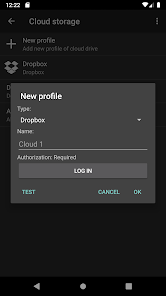
- You will see a list of supported services (Dropbox, WebDAV, FTP, etc.). Select the type of cloud storage you want to add.
Step 4: Configure Your Account
The configuration steps will vary depending on the service you choose.
- For services like Dropbox or Box.com: You will likely be redirected to a login page to authorize ZArchiver to access your account. Enter your credentials and grant the necessary permissions.
- For protocols like FTP, SFTP, or WebDAV: You will need to enter the server details manually. This typically includes the server address, port number, your username, and your password. You can also give the connection a custom name for easy identification.
Step 5: Access Your Cloud Files
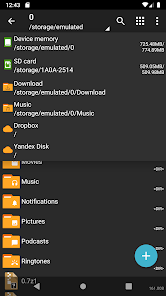
Once you have successfully added and configured your account, it will appear in the “Network” section within ZArchiver. Simply tap on the account name to browse your cloud files and folders. You can now perform standard file operations like copy, paste, delete, rename, and of course, upload and download files between your device and the cloud.
Tips for Managing Your Cloud Storage
To get the most out of the ZArchiver Cloud Plugin, here are a few tips and tricks for efficient file management.
- Organize Your Folders: Just like on your local device, a well-organized folder structure in your cloud storage will make it much easier to find what you need. Create logical folders for documents, photos, backups, and other categories.
- Use Compression for Backups: Before uploading large folders to the cloud for backup, use ZArchiver to compress them into a single archive file (like ZIP or 7z). This saves space in your cloud storage and makes the upload process faster.
- Take Advantage of SFTP for Security: Whenever possible, use SFTP instead of standard FTP. SFTP encrypts both your login credentials and the data being transferred, providing a much higher level of security.
- Regularly Clean Up Your Cloud Storage: Cloud storage can fill up quickly. Periodically review your files and delete anything you no longer need. Use ZArchiver to quickly sort files by size to identify the biggest space-hogs.
Troubleshooting Common Issues
If you run into problems while using the plugin, here are solutions to some common issues:
- Connection Errors: If you can’t connect to your cloud service, double-check your server address, username, and password. For services like FTP or WebDAV, also ensure you have the correct port number. Firewalls on your network or server can also block connections.
- Plugin Not Visible in ZArchiver: If you’ve installed the plugin but don’t see the “Network” option, try restarting your device. Ensure that both ZArchiver and the plugin are updated to the latest versions from the Play Store.
- Slow Transfer Speeds: Upload and download speeds are dependent on your internet connection. If transfers are slow, test your connection speed. Large files will naturally take longer to transfer. Compressing files before uploading can sometimes speed up the overall process.
Unlock Your File Management Potential
The ZArchiver Cloud Plugin is an essential extension for any serious ZArchiver user. By bridging the gap between local and cloud storage, it transforms the app into a comprehensive file management solution. Its ability to centralize your workflow, enhance accessibility, and improve security makes it a must-have tool for anyone looking to efficiently manage their digital life.
Ready to take your file management to the next level? Download the ZArchiver Cloud Plugin today and experience the convenience of unified file access.
[Download ZArchiver Cloud Plugin]
Report

What's New
- Fixed WebDav, FTPS support;
- Fixed file list caching;
- Updated dependencies;
- Minor fixes.
Download ZArchiver Cloud Plugin
You are now ready to download ZArchiver Cloud Plugin for free. Here are some notes:
- Please check our installation guide.
- To check the CPU and GPU of Android device, please use CPU-Z app