Google Keep


| Name | Google Keep - Notes and lists |
|---|---|
| Publisher | Google LLC |
| Genre | Productivity |
| Version | |
| Update | November 9, 2025 |
| Get it On | Play Store |
| Report | Report Apps |
Preview


Explore this article
Your Guide to Google Keep – Notes and listsWhat is Google Keep?Getting Started with Google KeepKey Features of This Note-Taking AppCreating and Organizing NotesLabels and Colors for OrganizationSetting Reminders and Location-Based AlertsReal-Time CollaborationAdvanced Tips and TricksUse Google Keep with Other Google ServicesPin Important NotesUse the Search FunctionBest Practices for ProductivityUnlock Your Productivity with Google Keep
Your Guide to Google Keep – Notes and lists
In the sea of productivity tools, finding the right note-taking app can feel overwhelming. You need something simple enough for quick thoughts but powerful enough to manage complex projects. Enter Google Keep, the digital equivalent of a trusty sticky note that’s always within reach. It’s a straightforward, versatile tool designed to capture what’s on your mind, whenever and wherever inspiration strikes.
This guide will walk you through everything you need to know about Google Keep. We’ll cover the basics of getting started, explore its key features, and share advanced tips to help you transform this simple app into a powerful productivity hub. By the end, you’ll understand how to use Google Keep to organize your thoughts, manage your tasks, and streamline your daily workflow.
What is Google Keep?
Google Keep is a free note-taking app developed by Google. It allows you to create, organize, and share notes, lists, images, and audio recordings. At its core, it’s designed for speed and simplicity. You can quickly jot down a thought, create a checklist for groceries, or save a photo of a document for later.
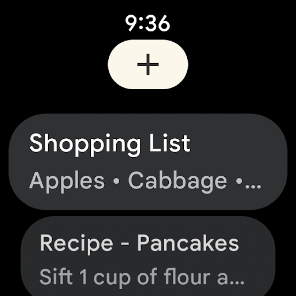
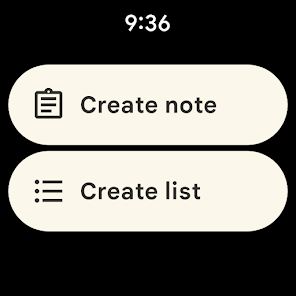
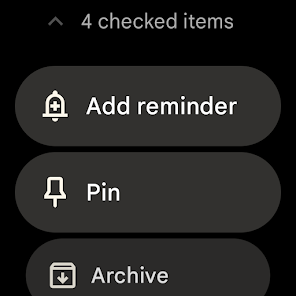
What makes Google Keep a standout productivity tool is its seamless integration with the broader Google ecosystem, including Google Docs, Calendar, and Gmail. It syncs across all your devices—phone, tablet, computer, and even your Wear OS watch—so your notes are always accessible. Whether you’re at your desk or on the go, your ideas are just a tap away.
Getting Started with Google Keep
Getting set up with Google Keep is easy. Since it’s a Google product, all you need is a Google account.
You can access Google Keep in a few ways:
- Web: Visit keep.google.com.
- Mobile: Download the Google Keep app from the Google Play Store or the Apple App Store.
- Chrome Extension: Add the Google Keep extension from the Chrome Web Store at g.co/keepinchrome.
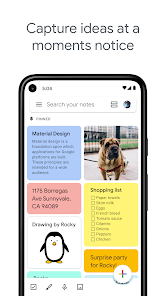
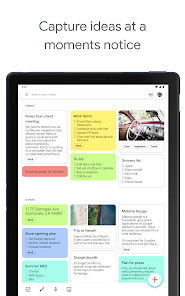
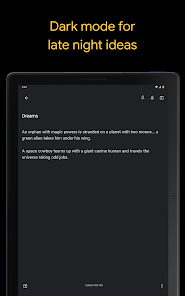
The interface is clean and intuitive, resembling a virtual pinboard. Your notes appear as colorful cards that you can move around, edit, and organize. The main screen displays all your notes, with a search bar at the top and a field to create a new note just below it.
Key Features of This Note-Taking App
Google Keep packs a lot of functionality into its simple design. Here are some of the core features that make it such a versatile tool.
Creating and Organizing Notes
At its heart, Google Keep is all about capturing thoughts quickly. You can create different types of notes:
- Simple text notes: For jotting down ideas, reminders, or bits of information.
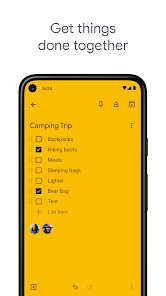
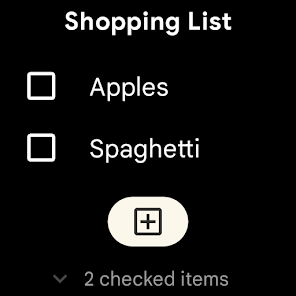
- Checklists: Perfect for to-do lists, grocery lists, or project tasks. You can check off items as you complete them.
- Image notes: Snap a photo of a whiteboard, a receipt, or a poster. Google Keep can even extract text from images using Optical Character Recognition (OCR), making the content searchable.
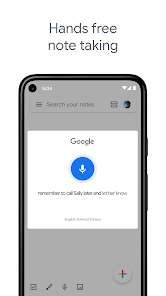
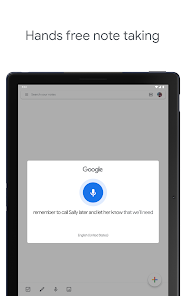
- Audio notes: Record a voice memo on the go. Keep will automatically transcribe the audio, so you can read it or search for it later.
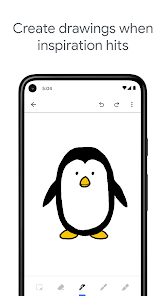
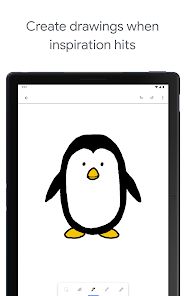
- Drawing notes: Sketch out ideas or annotate images directly within the app.
Labels and Colors for Organization
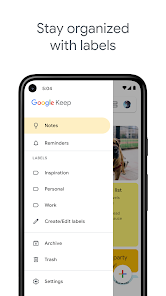
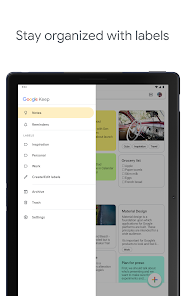
To prevent your digital pinboard from getting cluttered, Google Keep offers two simple organizational tools: colors and labels. You can assign one of twelve colors to your notes, making it easy to visually distinguish between different categories, like work, personal, or urgent tasks.
Labels function like folders, allowing you to group related notes together. For example, you could create labels for “Work Projects,” “Meeting Notes,” or “Creative Ideas.” You can assign multiple labels to a single note, offering more flexibility than traditional folder systems.
Setting Reminders and Location-Based Alerts
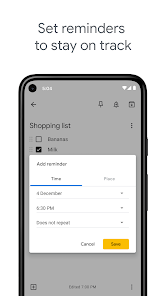
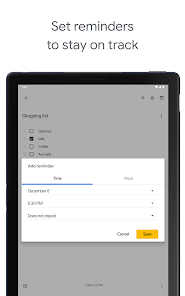
A note is only useful if you remember to look at it. Google Keep’s reminder system ensures you never miss a thing. You can set time-based reminders that notify you on a specific date and time.
One of the most powerful features is location-based reminders. Need to remember to buy milk? Set a reminder that triggers your grocery list when you arrive at the supermarket. Have to discuss a project with a colleague? Set a reminder that pops up when you get to the office. This context-aware functionality makes Google Keep an incredibly effective productivity tool.
Real-Time Collaboration
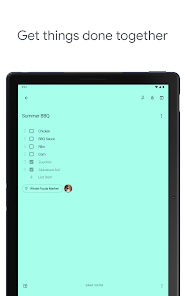
Google Keep makes it simple to share ideas and work with others. You can share any note or list with friends, family, or colleagues by adding their email addresses. Once shared, everyone can view and edit the note in real time, making it perfect for planning a trip, managing shared household tasks, or collaborating on a small project.
Advanced Tips and Tricks
Ready to take your Google Keep skills to the next level? Here are a few advanced ways to integrate it into your workflow.
Use Google Keep with Other Google Services
Google Keep’s real power shines when you use it alongside other Google apps.
- Google Docs: Have a collection of notes for a report? You can easily copy your Google Keep notes directly into a Google Doc. Just open a new document, click the Keep icon in the side panel, and drag your notes into the file.
- Gmail: Turn an important email into a to-do item by saving it to Keep. With the Keep side panel open in Gmail, you can create a new note that automatically links back to the original email.
- Google Calendar: You can view your time-based reminders from Keep directly in your Google Calendar, giving you a complete overview of your schedule and tasks in one place.
Pin Important Notes
If you have a note you need to access frequently, you can pin it to the top of your Google Keep dashboard. This is great for daily to-do lists, ongoing project notes, or any critical information you need at a glance.
Use the Search Function
As your note collection grows, finding specific information can become a challenge. Google Keep’s search function is incredibly powerful. You can search by keywords, labels, colors, or even the type of content in the note (e.g., “notes with images” or “lists”). Because Keep transcribes audio and extracts text from images, even that content is fully searchable.
Best Practices for Productivity
To get the most out of Google Keep, it helps to establish a consistent system.
- Develop a Color-Coding System: Assign specific colors to different categories of notes. For example, use red for urgent tasks, blue for work-related notes, and green for personal reminders.
- Use Labels Consistently: Create a clear set of labels for your main life areas (e.g., “Work,” “Personal,” “Projects,” “Ideas”). This will make it much easier to filter and find notes later.
- Archive, Don’t Delete: When you’re finished with a note, archive it instead of deleting it. Archived notes are hidden from your main view but are still searchable. This keeps your main dashboard clean while ensuring you never lose important information.
Unlock Your Productivity with Google Keep
Google Keep proves that a note-taking app doesn’t need to be complex to be powerful. Its simple interface, combined with robust features like real-time collaboration, location-based reminders, and seamless integration with the Google ecosystem, makes it an invaluable productivity tool.
Whether you’re looking to organize your personal life, manage small projects, or simply find a better way to capture fleeting ideas, Google Keep offers a flexible and accessible solution. Give it a try—you might just find it’s the perfect tool to keep your thoughts organized and your productivity on track.
Report

What's New
* Bug fixes and performance improvements
Download Google Keep – Notes and lists
You are now ready to download Google Keep - Notes and lists for free. Here are some notes:
- Please check our installation guide.
- To check the CPU and GPU of Android device, please use CPU-Z app