Store, access, and share securely with Google Drive, part of Google Workspace.


| Name | Google Drive |
|---|---|
| Publisher | Google LLC |
| Genre | Productivity |
| Version | |
| Update | November 8, 2025 |
| Get it On | Play Store |
| Report | Report Apps |
Preview





Explore this article
Your Complete Guide to Google DriveGetting Started with Google DriveSetting Up Your AccountNavigating the InterfaceKey Features and FunctionalityFile Storage and OrganizationCollaboration and SharingIntegration with Google AppsAdvanced Tips and TricksUsing Google Drive OfflineManaging Your Storage SpaceSecurity and Privacy SettingsUnlock Your Productivity with Google Drive
Your Complete Guide to Google Drive
If you’ve ever needed to send a file that was too large for an email, or wished you could work on a document with a teammate at the same time, you’ve probably encountered a cloud storage service. Google Drive is one of the most popular and powerful options available, offering a seamless way to store, share, and collaborate on files from anywhere.
Google Drive is more than just a place to keep your files. It’s a complete productivity hub that integrates with a suite of powerful applications, transforming how you manage your digital life. Whether you’re a student working on a group project, a professional collaborating with a team, or simply someone looking to back up important documents, Google Drive has the tools you need.
This guide will walk you through everything you need to know to master Google Drive. We’ll start with the basics of setting up an account and navigating the interface. Then, we’ll explore its key features, from file storage and real-time collaboration to its powerful integrations. Finally, we’ll share some advanced tips to help you get the most out of the platform.
Getting Started with Google Drive
Getting started with Google Drive is simple. If you already have a Google account for services like Gmail or YouTube, you already have access to Google Drive.
Setting Up Your Account
- Go to the Google Drive website: Open your web browser and navigate to drive.google.com.
- Sign in: Use your existing Google account credentials to sign in. If you don’t have an account, you can create one for free.
- Explore the interface: Once you’re signed in, you’ll see the main Drive interface. Take a moment to familiarize yourself with the layout.
Navigating the Interface
The Google Drive interface is designed to be intuitive and easy to use. Here’s a quick tour of the main sections:
- My Drive: This is your personal space where all your files and folders are stored. You can upload files directly from your computer or create new ones using Google’s apps.
- Shared with me: Here you’ll find files and folders that other people have shared with you.
- Recent: This view shows you the files you’ve recently accessed, making it easy to pick up where you left off.
- Starred: You can “star” important files and folders for quick access from this section.
- Trash: Deleted files are moved here and can be restored or permanently deleted.
Every new Google account comes with 15 GB of free storage, which is shared across Google Drive, Gmail, and Google Photos. If you need more space, you can upgrade to a Google One plan, with subscriptions in the US starting at $1.99 per month for 100 GB.
Key Features and Functionality
Google Drive is packed with features that make it a powerful tool for both personal and professional use. Let’s explore some of the most important ones.
File Storage and Organization
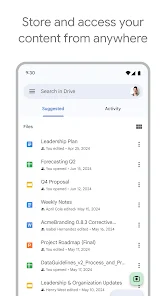
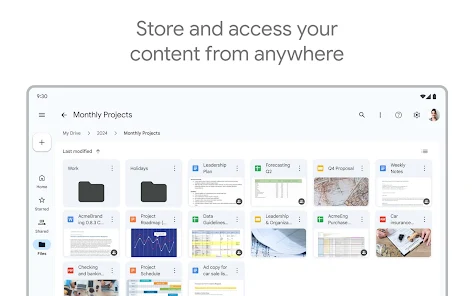
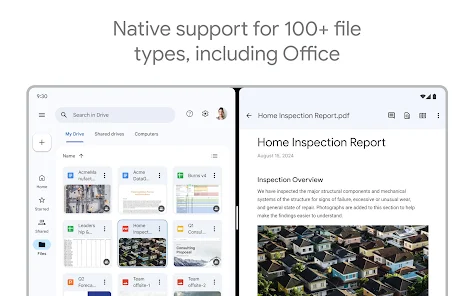
At its core, Google Drive provides secure cloud storage for your files. You can upload and store over 100 different file types, including PDFs, Microsoft Office files, images, and videos.
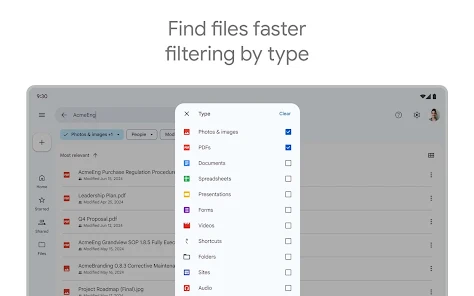
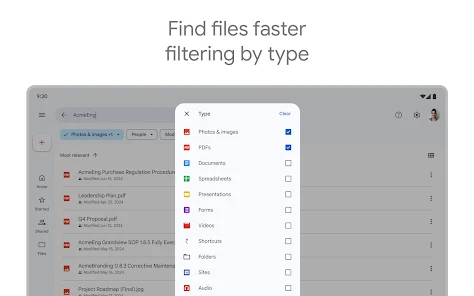
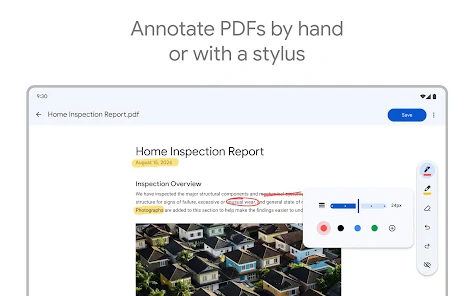
Organizing your files is just as easy as it is on your computer. You can create folders, move files between them, and use colors to visually distinguish important folders. The search functionality is particularly powerful. Powered by Google’s AI, the search bar lets you find files not just by name, but also by their content. For instance, you can search for a phrase inside a document or a keyword in a PDF, and Drive will find it for you. You can also filter searches by file type, owner, or last modified date.
Collaboration and Sharing
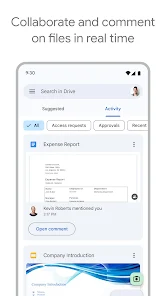
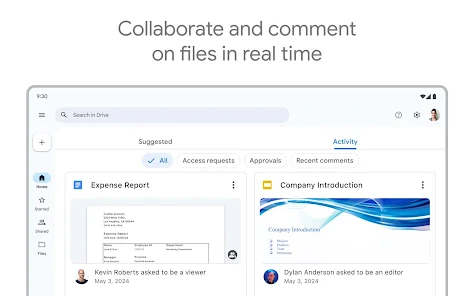
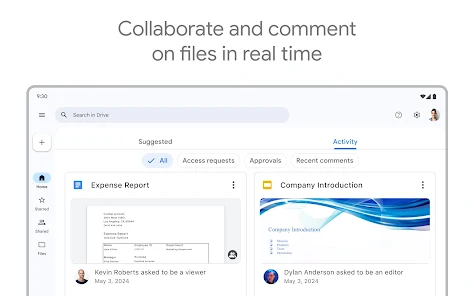
One of Google Drive’s standout features is its ability to facilitate real-time collaboration. Instead of sending multiple versions of a document back and forth, you can share a single file and work on it with others simultaneously.
When you share a file or folder, you can control who has access and what they can do with it. Permissions can be set to:
- Viewer: Can only view the file.
- Commenter: Can view and add comments.
- Editor: Can view, comment, and make changes to the file.
You can even set an expiration date for access, which is useful for temporary collaborations. For teams using Google Workspace, shared drives offer a dedicated space for team content, where files belong to the team rather than an individual. This ensures that even if a team member leaves, the files remain accessible.
Integration with Google Apps
Google Drive is seamlessly integrated with Google’s suite of productivity apps:
- Google Docs: A word processor for creating documents.
- Google Sheets: A spreadsheet application for data analysis.
- Google Slides: A presentation tool for creating slideshows.
When you create a file in one of these apps, it’s automatically saved to your Drive. This integration streamlines your workflow, as you can create, edit, and share all from one central location. Drive also works with many third-party apps, like Slack, Zoom, and Salesforce, allowing you to connect your files to the other tools you use every day.
Advanced Tips and Tricks
Once you’re comfortable with the basics, you can start exploring some of Google Drive’s more advanced features to boost your productivity.
Using Google Drive Offline
You don’t always need an internet connection to be productive. With Google Drive for desktop (available for Windows and macOS), you can sync your files to your computer and access them offline. Any changes you make will automatically sync back to the cloud once you’re back online. This is perfect for working on flights, during commutes, or in areas with unreliable internet. You can also make specific files available offline on your mobile device through the Google Drive app.
Managing Your Storage Space
With 15 GB of free storage, it’s important to keep an eye on how much space you’re using. To see your current usage, simply look at the bottom of the left-hand menu in Drive. If you’re running low, here are a few ways to free up space:
- Empty your Trash: Files in the Trash still count toward your storage limit until they are permanently deleted.
- Find large files: You can sort your files by size to identify and delete large files you no longer need.
- Clean up Gmail and Google Photos: Remember that your storage is shared. Deleting large attachments in Gmail or duplicate photos can free up significant space.
Security and Privacy Settings
Google builds strong security features into its products to protect your information. Drive encrypts your data both in transit and at rest. For added security, you should enable two-step verification on your Google account.
You have full control over your data. According to Google’s Terms of Service, your content remains yours. Google does not use your content for marketing or promotional campaigns. It’s also important to periodically review the apps that have access to your Google Drive and revoke permissions for any you no longer use.
Unlock Your Productivity with Google Drive
Google Drive is a versatile and powerful tool that can simplify how you store, share, and manage your digital files. Its combination of generous storage, real-time collaboration features, and seamless integration with other apps makes it an essential tool for students, professionals, and anyone looking to get organized.
By getting to know its features and using the tips in this guide, you can transform Google Drive from a simple storage solution into a central hub for your productivity. Start exploring its features today and discover how it can streamline your digital life.
Report

What's New
* Bug fixes and performance improvements.
Download Google Drive
You are now ready to download Google Drive for free. Here are some notes:
- Please check our installation guide.
- To check the CPU and GPU of Android device, please use CPU-Z app