Fast and smart typing with Emojis, GIFs, and more

| Name | Gboard - the Google Keyboard |
|---|---|
| Publisher | Google LLC |
| Genre | Tools |
| Size | 74MB |
| Version | 11.4.08.422524001-beta-arm64-v8a |
| Update | November 12, 2025 |
| Get it On | Play Store |
| Report | Report Apps |
Preview


Explore this article
Gboard – The Google Keyboard: The Ultimate Guide to Google’s KeyboardGetting Started with Gboard – The Google KeyboardHow to Install and Set Up on AndroidHow to Install and Set Up on iOSCustomizing Your Typing ExperiencePersonalize with Themes and LayoutsAdjusting the Layout for ComfortMaster Gboard’s Smart FeaturesGlide Typing and Voice InputSeamless Google IntegrationExpress Yourself with GIFs, Emojis, and StickersTips and Tricks for Power UsersGboard vs. Other Keyboard AppsThe Ultimate Keyboard Upgrade
Gboard – The Google Keyboard: The Ultimate Guide to Google’s Keyboard
Your phone’s keyboard is probably the app you use most often. From texting friends to writing emails and searching online, it’s the gateway to most of your digital interactions. While the default keyboard on your phone gets the job done, what if there was a smarter, faster, and more personalized way to type? Enter Gboard, the Google Keyboard.
Gboard is more than just a tool for inputting text; it’s a powerful productivity hub packed with features designed to make your life easier. It integrates Google’s best services—like Search and Translate—directly into your keyboard, saving you from constantly switching between apps.
This guide will walk you through everything Gboard has to offer. You’ll learn how to set it up, customize its appearance, and master its powerful features. By the end, you’ll see why Gboard is a top choice for millions of users on both Android and iOS.
Getting Started with Gboard – The Google Keyboard
Before you can explore its rich features, you need to install and set up Gboard on your device. The process is simple and only takes a few minutes.
How to Install and Set Up on Android
For many Android users, Gboard is already the default keyboard. If it isn’t, or if you want to ensure you have the latest version, follow these steps:
- Download Gboard: Open the Google Play Store and search for “Gboard.” Tap “Install” or “Update” to download the app.
- Enable Gboard: After installation, open your phone’s Settings, go to System > Languages & input > On-screen keyboard. Toggle Gboard on. You may see a standard privacy warning about the keyboard collecting data; this is a default message for all third-party keyboards.
- Set as Default: A prompt will appear asking you to select your default input method. Choose Gboard from the list.
How to Install and Set Up on iOS
iPhone users can also replace their default keyboard with Gboard:
- Download Gboard: Go to the App Store, search for “Gboard,” and tap “Get” to install it.
- Add the Keyboard: Open Settings > General > Keyboard > Keyboards. Tap “Add New Keyboard…” and select Gboard from the list.
- Grant Full Access: Tap on Gboard in your keyboard list and toggle on “Allow Full Access.” This permission is necessary for features like Google Search and GIF integration to work correctly.
Customizing Your Typing Experience
One of Gboard’s standout qualities is its high degree of customization. You can tailor its look and feel to match your personal style and improve usability.
Personalize with Themes and Layouts
Say goodbye to the standard gray keyboard. Gboard offers a wide variety of themes to change its appearance. You can choose from solid colors, scenic landscapes, or even upload your own photo as the keyboard background.
To change your theme:
- Open Gboard’s settings (tap the gear icon on the keyboard).
- Select Theme.
- Browse the available options or tap the “+” icon to create a custom theme with your own image. You can also decide whether to show key borders for a more traditional look.
Adjusting the Layout for Comfort
Gboard also provides layout adjustments to enhance typing comfort. One-Handed Mode is particularly useful for larger phones, allowing you to shrink and pin the keyboard to the left or right side of the screen. You can also adjust the keyboard height to give yourself more or less screen space.
Master Gboard’s Smart Features
Gboard is packed with intelligent features that go far beyond basic typing. Mastering these tools can significantly boost your productivity and make communicating more fun and efficient.
Glide Typing and Voice Input
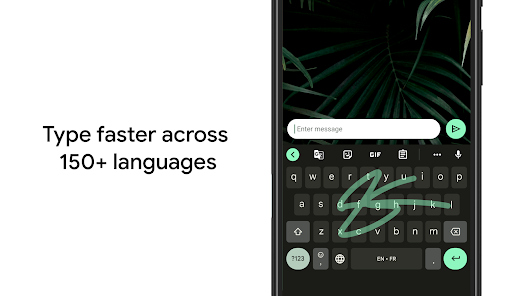
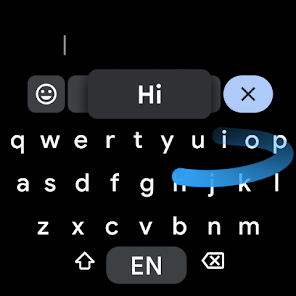
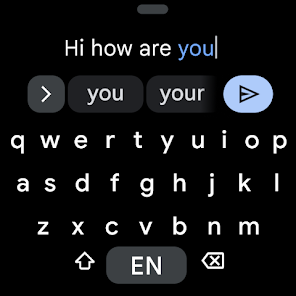
Tired of tapping out every letter? Glide Typing lets you type faster by simply sliding your finger from letter to letter. Gboard’s predictive text engine is remarkably accurate, guessing the word you’re forming as you swipe.
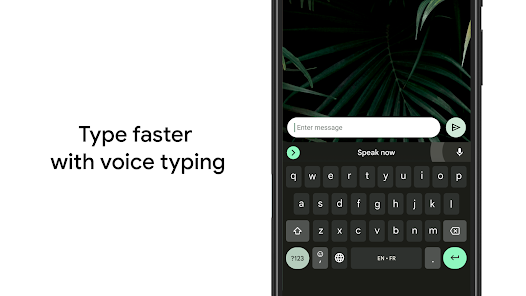
For hands-free communication, Voice Input allows you to dictate text. Just tap the microphone icon and start speaking. The voice recognition is powered by Google’s advanced speech technology, making it fast and reliable for transcribing your thoughts on the go.
Seamless Google Integration
The “G” in Gboard stands for Google, and this is where the app truly shines.
- Google Search: Need to share a link, check a fact, or find a nearby restaurant? You can do it all without leaving your current app. Tap the Google “G” icon on the keyboard, perform a search, and paste the results directly into your text field.
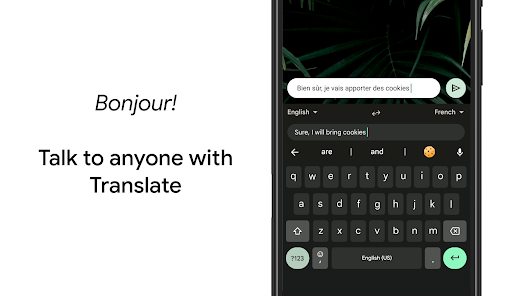
- Google Translate: Communicate in different languages with ease. The built-in Google Translate feature translates your text in real time as you type. Simply tap the translate icon, select the languages, and start typing. Your words will be instantly converted.
Express Yourself with GIFs, Emojis, and Stickers
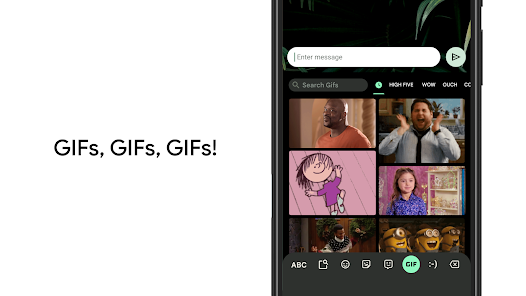
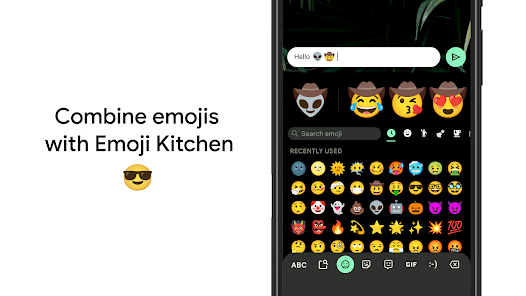
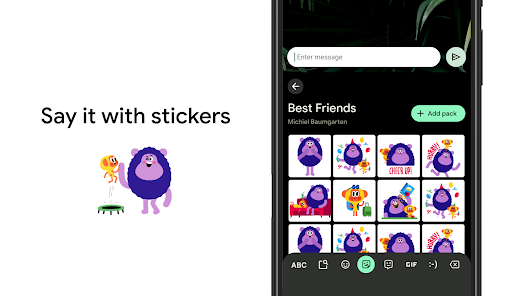
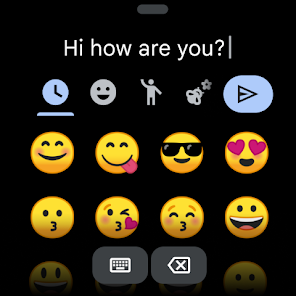
Gboard makes finding the perfect visual reaction simple. It has a dedicated emoji button with a search function, so you can quickly find the emoji you need instead of endlessly scrolling. The GIF and sticker search is just as powerful, letting you browse a massive library to find the right animation or illustration to express your mood.
Tips and Tricks for Power Users
Ready to take your Gboard skills to the next level? Here are some pro tips that will make you a more efficient typist:
- Gesture Cursor Control: Slide your finger left or right across the spacebar to move the cursor precisely without having to tap on the screen.
- Gesture Delete: Quickly delete multiple words by sliding your finger to the left from the delete key.
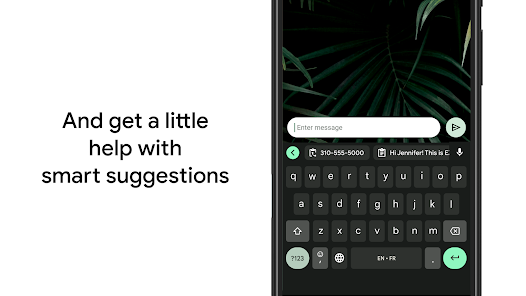
- Clipboard Manager: Gboard has a built-in clipboard that saves recently copied text. You can pin frequently used snippets, like your email address or a favorite response, for easy access.
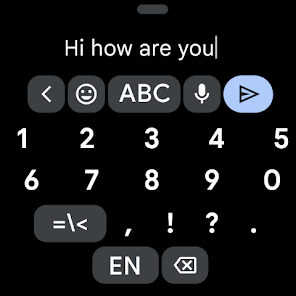
- Number Row: If you frequently type numbers, you can enable a dedicated number row at the top of the keyboard. Find this option in Settings > Preferences > Number Row.
- Multilingual Typing: If you speak more than one language, Gboard can automatically detect which one you’re typing in and provide appropriate suggestions and corrections without requiring you to switch manually. Gboard supports hundreds of languages, from Afrikaans to Zulu.
Gboard vs. Other Keyboard Apps
How does Gboard stack up against other popular keyboards like SwiftKey and the default iOS and Android keyboards?
- SwiftKey: Known for its powerful prediction engine, SwiftKey learns your writing style over time to offer incredibly accurate suggestions. While its prediction might be slightly ahead, Gboard’s seamless integration with Google services gives it a unique advantage in functionality.
- Default Keyboards (iOS/Android): Stock keyboards have improved significantly over the years, incorporating features like swipe typing. However, they lack the deep customization and powerful tools found in Gboard, such as built-in search, translation, and an extensive GIF library.
Ultimately, the choice comes down to personal preference. If you value deep integration with Google’s ecosystem and a wide range of built-in tools, Gboard is hard to beat.
The Ultimate Keyboard Upgrade
Gboard transforms the humble keyboard from a simple input tool into a versatile and intelligent assistant. Its combination of smart typing features, deep customization, and seamless integration with Google’s powerful services makes it a superior choice for almost any user.
Whether you’re looking to type faster with Glide Typing, break down language barriers with Google Translate, or simply find the perfect GIF, Gboard streamlines the process. By bringing the power of Google directly to your fingertips, it saves you time and makes your daily digital communication more efficient and enjoyable.
If you haven’t already, give the Google Keyboard a try. It’s a free upgrade that offers a wealth of features that can genuinely improve how you interact with your phone.
Report

What's New
• Create and share custom stickers quickly within Gboard. This feature is powered by Pixel Studio and is available on Pixel 9+ devices in English, Japanese, and German in selected countries.
• Download the beta version to give feedback on upcoming improvements https://goo.gl/8Ksj7x
Download Gboard – The Google Keyboard
You are now ready to download Gboard - the Google Keyboard for free. Here are some notes:
- Please check our installation guide.
- To check the CPU and GPU of Android device, please use CPU-Z app